

Power Query - Optimization with functions and variables

Following on from the article on optimizing steps, I now propose to improve our working methods with Power Query so as to be more efficient and have queries that are easier to maintain. The examples mentioned in this article are based on the code obtained in the article "Reduce steps". Please note that the order is unimportant, and that the example file includes modifications from this entire series of articles on optimization.
From code from previous articleWe improve maintainability and readability by using..:
- parameters,
- constants,
- customized functions,
- recordings
- simulation of a switch-case to replace the if-else.
Parameters
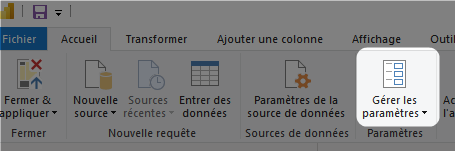
Parameters and constants are named global values in Power Query that can be invoked from anywhere in the query. Parameters can be easily managed in the Power Query editor, without the need for the Advanced Editor. To do so, in the "Home" ribbon, in the "Parameters" group, click on "Manage parameters" (Home > Parameters > Manage parameters).
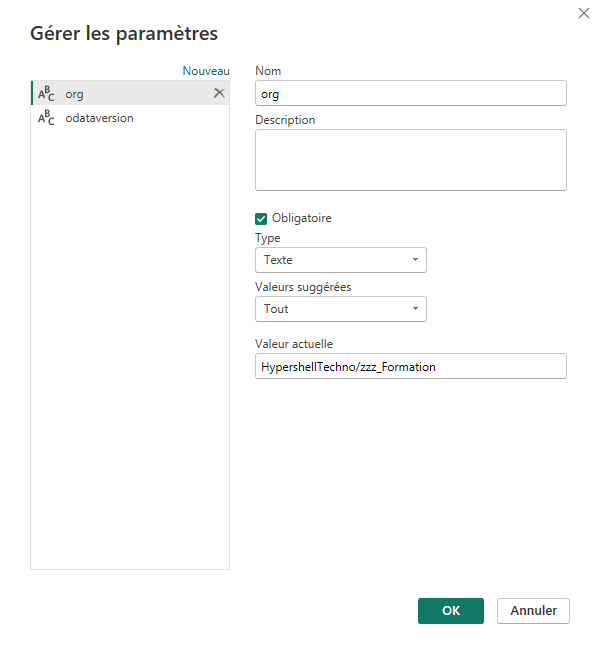
In the query editor, parameters will look like this
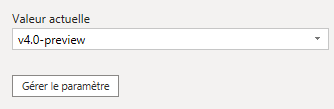
And in the advanced editor, the parameters will look like this
"current value" meta [IsParameterQuery=true, List={"value1", "value2", ...}, DefaultValue="default", Type="...", IsParameterQueryRequired=true]Where only the metadata IsParameterQuery, Type and IsParameterQueryRequired are required.
Constants
Constants are like parameters, except that they cannot be modified by users after publication. In their declaration, we will keep only the metadata Type.
"value" meta [Type="..."]In the visual editor, constants look like this

For a beginner, I suggest creating the constant as a parameter to make sure of the syntax and then altering the parameter to make it a constant, but after a while you'll probably create your constants manually.
It's also possible to use global variables (queries with a single value) like this, without defining a type (thus causing the system to consider the "Any" type and accept all values)
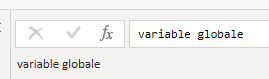
However, it is considered best practice to use a global constant rather than a global variable, since it forces type checking. As constants and parameters will be used in many other queries, forcing the type ensures data integrity and avoids errors.
Customized functions
There are sometimes intermediate steps that are only present to add information. We may even reuse this code more than once in all our queries. In the basic example, this is the case for the steps Icon (which prepares interim information) and addTitlePlus (which performs the formatting). Even worse than having unnecessary intermediate steps, another step is added later to remove these intermediate results. Previously, we've used a sub-step for formatting, but a greater gain in performance and maintainability could be achieved by creating a function. This function would be used to calculate the icon to be added in the addTitlePlus step.
This function can be placed in a functional query rather than in the current query, so that it can be invoked from anywhere. In the example, I've put this function in a utility function record, but this organization is optional.
getIcon = (wit as text) as text =>
    if wit = "Epic" then "👑"
    else if wit = "Feature" then "🏆"
    else if wit = "User Story" then "📘"
    else if wit = "Bug" then "🐞"
    else if wit = "Action Plan" then "📑"
    else if wit = "Issue" then "🚩"
    else if wit = "Task" then "📋"
    else if wit = "Test Case" then "📃"
    else if wit = "Test Plan" then "🗃"
    else if wit = "Test Suite" then "📂"
    else "🚧"
,
And in the step for adding the formatted title column, we simply call the function
addTitlePlus = Table.AddColumn(
    url,
    "Title+",
    each utils[getIcon]([WorkItemType]) & " " & [Title],
    type text
)
Or, if the Title was never used without the icon, rather than adding a column, we could simply change the original column:
formatTitle = Table.ReplaceValue(
    url,
    each [Title],
    each utils[getIcon]([WorkItemType]) & " " & [Title],
    Replacer.ReplaceText,
    { "Title"}
)
Registering functions is not mandatory. It's a personal preference to have a single query named "utils" in which I group my utility functions rather than having one query per function. One or the other has no impact on performance. We'll see later that it can be advantageous to use records rather than leave the functions free, but at this stage, you can do as you please since there's no real gain to either. For the rest of the examples, please note that my utility functions have been put into a record.
The advantage of utility functions, in addition to saving steps and being reusable, is their maintainability. Suppose the function getIcon is used in five queries throughout the project. If, after a while, we wanted to add a new type (e.g. "Documentation") that wasn't already present, we'd only have to modify the utility function to add the type in question and assign it its icon. We're also no longer dependent on column names, since their contents are passed as parameters. This allows us to have the same behavior when detached from the container. We could even go a step further and create a formatting function (taking type and title as parameters) to standardize the formatting of titles. This function can be used to create or modify columns:
formatTitle = (wit as text, title as text) as text => getIcon(wit) & " " & title,In this example, I've reused the getIcon already present in my utility request, but the two functions could have been just one.
This function is called up in the same way as above:
formatTitle = Table.ReplaceValue(
    url,
    each [Title],
    each utils[formatTitle]( [WorkItemType], [Title] ),
    Replacer.ReplaceText,
    { "Title"}
)
Here's what the utility request for this example might look like, with the addition of a URL formatting function that takes into account whether "org" is a parameter or a global constant:
let

    getIcon = (wit as text) as text =>
        if wit = "Epic" then "👑"
        else if wit = "Feature" then "🏆"
        else if wit = "User Story" then "📘"
        else if wit = "Bug" then "🐞"
        else if wit = "Action Plan" then "📑"
        else if wit = "Issue" then "🚩"
        else if wit = "Task" then "📋"
        else if wit = "Test Case" then "📃"
        else if wit = "Test Plan" then "🗃"
        else if wit = "Test Suite" then "📂"
        else "🚧",

    formatTitle = (wit as text, title as text) as text => getIcon(wit) & " " & title,

    formatURL = (proj as text, id as number) as text =>
        "https://dev.azure.com/"& org & "/" & proj &"/_workitems/edit/"&Text.From(id),

    utils = [
        getIcon = getIcon,
        formatTitle = formatTitle,
        formatURL = formatURL
    ]

in utils
This technique is only really useful if we need to perform these operations more than once. Nevertheless, when it comes to maintainability, performance and readability, custom functions are still advantageous.
The power of recordings
There is still room for improvement in the current solution. The structure if...elseif...else brings a loss of efficiency, but many fall back on it because the structure switch...case does not exist in Power Query. However, there is a trick to being as efficient as a switchis to use a Record.
In our utility query, let's create a record of our different item types as a key and their icon as a value.
iconSet = [
   Epic = "👑",
   Feature = "🏆",
   # "User Story" = "📘",
   Bug = "🐞",
   # "Action Plan" = "📑",
   Document = "🖺",
   Issue = "🚩",
   Task = "📋",
   # "Test Case" = "📃",
   # "Test Plan" = "🗃",
   # "Test Suite" = "📂"
]
Please note that keys are considered to be variable names and must meet the same nomenclature criteria. It is therefore imperative to enclose names that include special characters (spaces, accents, hyphens) in quotation marks preceded by a brace (#), as can be seen with # "User Story", # "Action Plan" and test items.
In this way, it is possible to modify our function getIcon like this:
getIcon = (wit as text) as text => Record.FieldOrDefault(iconSet, wit, "🚧")where our default value is entered in the FieldOrDefault rather than in our conditional structure. Essentially, this function asks you to return the value of the key wit (WorkItem Type) of our record iconSet. This operation is almost instantaneous, since it's a reference, rather than taking a few milliseconds for each condition test, which can be extremely time-consuming for more complex checks.
The same applies to any type of operation requiring a value-based condition. As records are a key-value structure, where the key must be a string and the value is of type ANY, anything is possible (a primitive value, a function, a list, another record, or even a table). Keep in mind that records are by far the most versatile structure in Power Query, and when used properly, can simplify a complex problem.
Conclusion - current solution
There are several ways to optimize Power Query requests. Putting everything we've seen in this article and the previous one together, we get the solution presented below. As a bonus, I've added the transformation of local configuration variables into records. There's no noticeable gain, apart from the fact that the configuration ends up in a single step containing all our variables at the start of the query.
Global parameters
org
"KuriosIT" meta [IsParameterQuery=true, Type="Text", IsParameterQueryRequired=true]odataversion
"v4.0-preview" meta [IsParameterQuery=true, List={"v5.0-preview", "v4.0-preview", "v3.0-preview"}, DefaultValue="v4.0-preview", Type="Text", IsParameterQueryRequired=true]Global constants
baseURL
"https://dev.azure.com/" meta [Type="Text"]analyticsURL
"https://analytics.dev.azure.com/" meta [Type="Text"]Recording utility functions
utilities
let
    iconSet = [
        Epic = "👑",
        Feature = "🏆",
        # "User Story" = "📘",
        Bug = "🐞",
        # "Action Plan" = "📑",
        Document = "🖺",
        Issue = "🚩",
        Task = "📋",
        # "Test Case" = "📃",
        # "Test Plan" = "🗃",
        # "Test Suite" = "📂"
    ],

    getIcon = (wit as text) as text => Record.FieldOrDefault(iconSet, wit, "🚧"),

    formatTitle = (wit as text, title as text) as text => getIcon(wit) & " " & title,

    formatURL = (proj as text, id as number) as text =>
        baseURL & org & "/" & proj &"/_workitems/edit/"&Text.From(id),

    utils = [getIcon = getIcon, formatTitle = formatTitle, formatURL = formatURL]
in utils
Request
let
    setup = [
        feed = "WorkItems",
        query = "$select=WorkItemId, State, Title, WorkItemType, Priority, Risk, Severity, StoryPoints, TagNames, StateCategory, ParentWorkItemId"&
    "&$expand=Area($select=AreaName,AreaPath), Project($select=ProjectId,ProjectName), Iteration($select=IterationName,IterationPath,IsEnded), AssignedTo($select=UserName)"&
        "&$orderby=WorkItemId asc",
        fullquery = feed & "?" & query
    ],
    Source = OData.Feed(analyticsURL & org & "/_odata/" & odataversion & "/" & setup[fullquery], null, [Implementation="2.0"] ),

    expand = let
        expandProject = Table.ExpandRecordColumn(
            Source,
            "Project",
            { "ProjectName", "ProjectId"}
        ),
        expandArea = Table.ExpandRecordColumn(
            expandProject,
            "Area",
            { "AreaName", "AreaPath"}
        ),
        expandIteration = Table.ExpandRecordColumn(
            expandArea
            "Iteration"
            {"IterationName", "IterationPath", "IsEnded"}
        ),
        expandAssign = Table.ExpandRecordColumn(
            expandIteration,
            "AssignedTo",
            {"UserName"},
            {"AssignedTo.UserName"}
        )
    in expandAssign,
    url = Table.AddColumn(
        expand,
        "URL",
        each utils[formatURL]([ProjectName],[WorkItemId]),
        type text
    ),
    formatTitle = Table.ReplaceValue(
        url,
        each [Title],
        each utils[formatTitle]( [WorkItemType], [Title] ),
        Replacer.ReplaceText,{"Title"})
in
    formatTitle
You will find the Power BI file that includes this Power Query example at following this link. This example also includes some DAX cases, which will be presented in the next article.
Still curious?
More articles on optimization and advanced techniques are to come. For those who wish to continue and learn more, I invite them to follow the blog series entitled " Series - Creating an agile dashboard with Power BI "by Simon-Pierre Morin and Mathieu Boisvert.